Simulcasting for live Shopify shows
Simulcasting for Live Shopify Shows
Someone follows your shop on Instagram but hasn’t visited the store today. You’re already live, showing a piece they might like. Simulcasting gives that show another place to be seen.
The same broadcast can run on your storefront and the external channels you’ve connected. You present the products once, while people can discover the show in more than one place.
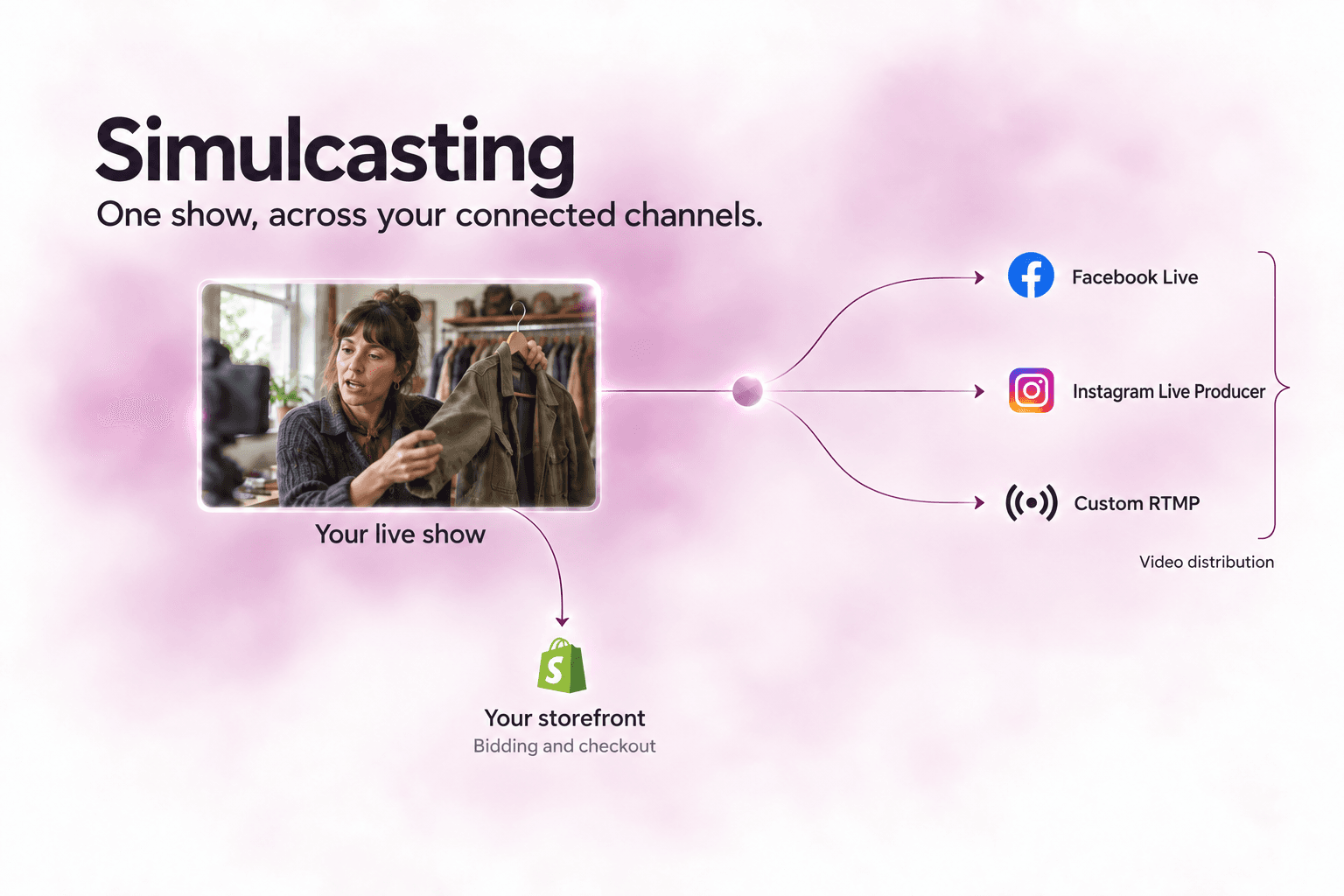
Broadcast one show to connected channels
A photograph leaves a shopper to imagine how a product looks in use. During a live show, you can turn it around, explain a detail, and respond to a question as it comes up.
Simulcasting carries that demonstration to your connected channels. A viewer can encounter the product while you’re explaining it, then follow your show link to the storefront to take part in the sale.
For the merchant, the preparation behind one show can serve audiences across several destinations. There is no separate performance to repeat for each one.
Send social viewers to your Shopify storefront
The broadcast carries the video. Bidding and checkout take place in your store, so the invitation matters: tell viewers where to join and share the storefront show link.
That gives someone who knows your social account a route into your live sale. They can watch first, then visit when a product catches their interest. Comments remain on their respective platforms; simulcasting does not combine them into one conversation.
Plan the invitation before the broadcast. The audience and promotion guide explains how event links, invitations and reminders help viewers find your store.
Select your broadcast destinations
Configure destinations on the web, then select which ones to use for a show. Supported connections include Facebook Live, Instagram Live Producer and custom RTMP, a streaming connection for other compatible destinations. Availability depends on the connected account and destination readiness.
Instagram requires a confirmation step in Live Producer. Existing destinations can also be selected from the iPhone host controls, and destination status helps you see where the broadcast is live or needs attention.