OBS setup for live selling on Shopify
OBS Setup for Live Selling on Shopify
You’re showing a vintage watch. One camera faces you; another shows the dial up close. Switching between those views lets shoppers see the details you’re describing without interrupting the conversation.
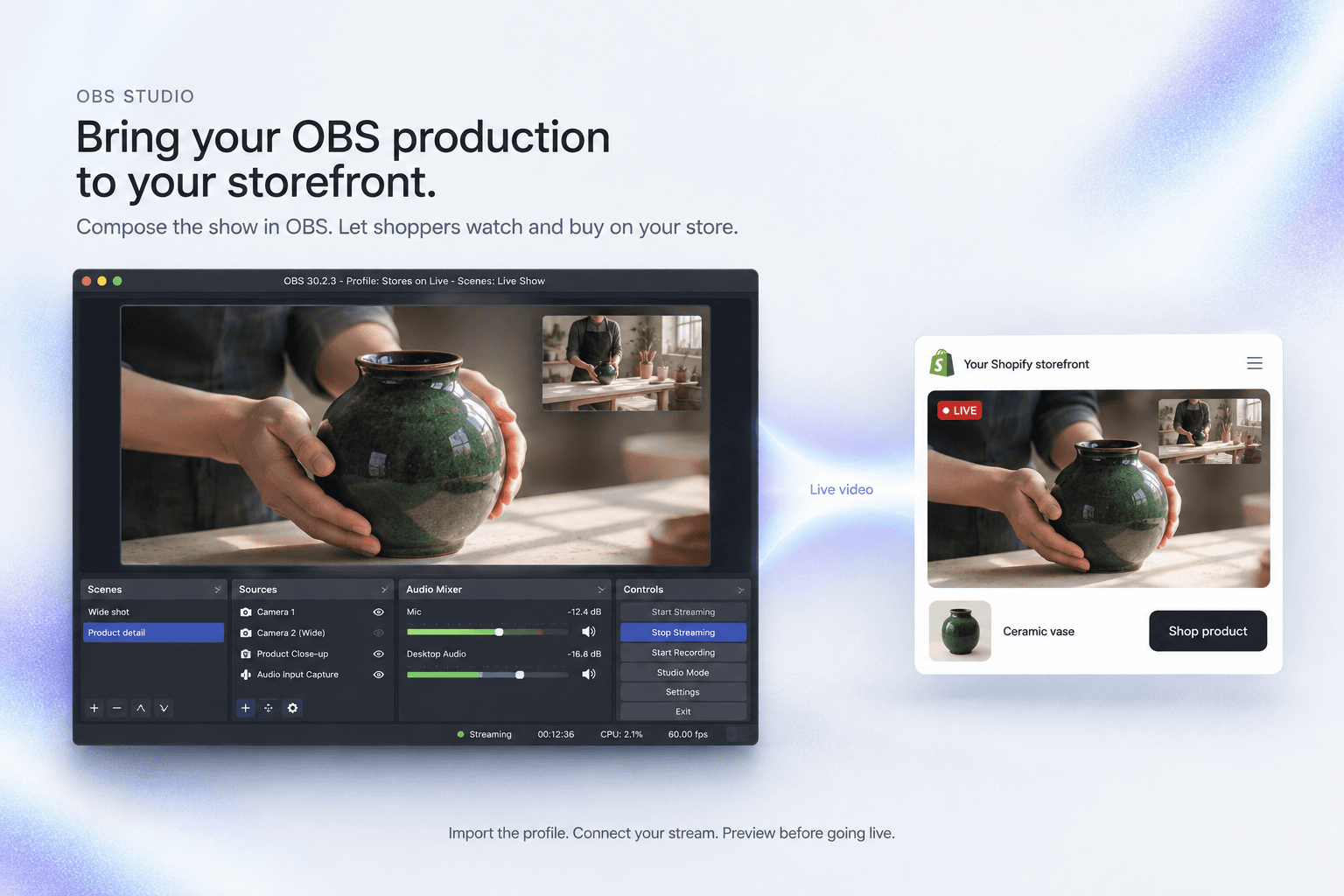
OBS Studio lets you arrange cameras, images and audio into scenes. Connect its broadcast to Stores on Live, and shoppers can watch that presentation inside your Shopify event while they bid or buy.
Prepare the views your products need
Set up your cameras and microphone in OBS before the show. A clothing seller might switch from a full-length view to a fabric close-up. A collectibles seller might keep a second camera pointed at the table.
You choose the scenes and switch between them in OBS. Stores on Live receives the resulting video, so your production setup can stay familiar as you present the lineup.
Start with the Stores on Live profile
Open the OBS setup in your host workspace and download the Stores on Live profile. Unzip the download, then use Profile → Import in OBS. Select the extracted Stores on Live folder and open it, then select that profile from the Profile menu.
The profile provides the streaming settings for the connection. Your cameras and scenes are still yours to prepare. If you prefer to enter the settings yourself, the setup panel includes manual instructions.
Connect OBS to the show
In OBS, open Settings → Stream and choose Custom as the service. Copy the Server URL and Stream Key from your show’s setup panel into the matching fields, then apply the settings.
Keep the stream key private. Use the details supplied for your connection. If the connection expires or you replace the key, update the details in OBS before streaming again.
Check the picture before shoppers join
Click Start Streaming in OBS and keep the setup panel open. The app checks for incoming video and shows the connection’s progress. Check the picture in the preview and your microphone levels in OBS before presenting.
A working private preview does not mean shoppers can already watch. Follow the host controls to make the broadcast public, and check the shopper video status. Opening the first product for sale is a separate action.
Run the sale from your host workspace
OBS handles the picture and sound you send. Continue to manage the product lineup and selling actions in Stores on Live. Shoppers participate through the storefront, and winners complete Shopify checkout themselves.
Keep OBS streaming while you want to send video. Stopping its stream interrupts the picture; it does not replace ending the event through the host controls.