 Live selling guide · Instagram
Sell live with your Instagram audience
Use Instagram Live to show your products to the people who follow your business. StoresOnLive sends your show to Instagram while you manage products, bids, and checkout in your Shopify store.
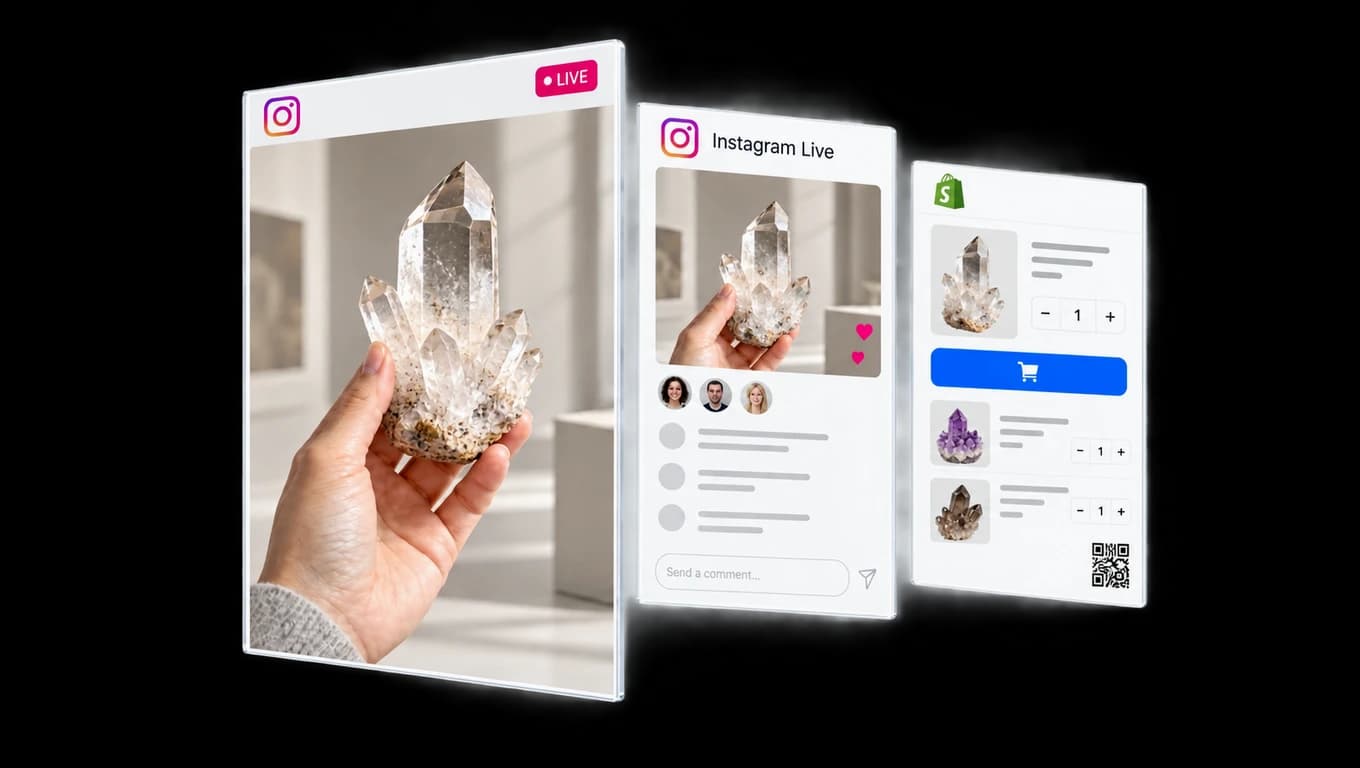
Give followers a way to shop
You can demonstrate a product on Instagram and in your store at the same time. There is no need to run a second show for each audience.
Put the store’s show link in your Instagram bio before you start. Tell viewers to open it when they want to bid or buy. Instagram comments do not place bids.
Keep product details on the screen
With show graphics enabled, StoresOnLive adds the product photo, name, price, and selling status to your video. The details update as you move through the show.
The store address and QR code stay visible. Viewers on a computer can scan the code with their phone. Viewers on a phone can open the link in your bio.
This gives someone who joins halfway through a way to see what is for sale and where to buy it. You keep presenting; StoresOnLive handles the graphics.
Instagram video can be delayed. Customers should use your store for the current price and to place a bid. A Sold label shows the sale result; payment is confirmed through Shopify checkout.
Check your Instagram account
You need a public professional account with at least 1,000 followers. On a computer, open instagram.com. Check that the Create menu includes Live video. Instagram decides which accounts have access.
Prepare the broadcast
- On instagram.com, open Create, then Live video.
- Copy the Server URL and stream key. These are the connection details for this broadcast.
- Paste both into Instagram Live in StoresOnLive. Enable Instagram for your show. Keep the Instagram tab open.
- Start your show and camera broadcast. Wait for the picture and sound in the Instagram preview. Then click Go Live in Instagram.
Use a new stream key for each show. Instagram needs this final Go Live click before viewers can watch.
Try it before your first sale
Disable Facebook while you test Instagram. Select Practice in Instagram, if available, to keep the test private. Check the picture, sound, and product graphics.
For a public test, start a new Instagram session and select Public. Ask someone to check the broadcast and store link from another account.
End the Instagram broadcast first. Then end your StoresOnLive show.
Account requirements checked on 6 October 2026. See the Instagram Live requirements.